To Implement the Build info in the Registry Simply add below TS steps at the end of task sequence
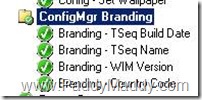
Each Step explanation
Branding - TSeq Build Date: add a ts type as Run command line
Command line:
cmd /c reg add HKEY_LOCAL_MACHINE\SOFTWARE\CSC\SOE /v TaskSequence_BuildDate /d "%date% %time%" /f

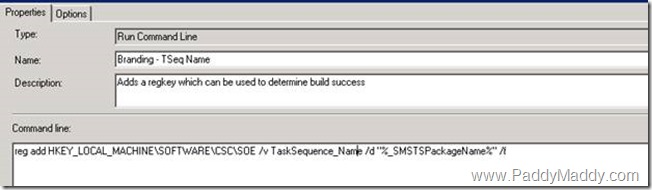
For getting Task Sequence Name in the Registry:
Branding - TSeq Name:-
Command line :-
reg add HKEY_LOCAL_MACHINE\SOFTWARE\CSC\SOE /v TaskSequence_Name /d "%_SMSTSPackageName%" /f
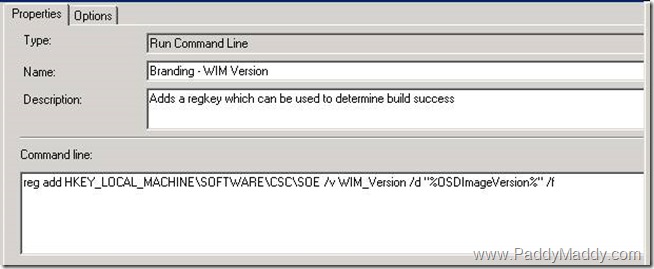
For Branding - WIM Version
Command line:
reg add HKEY_LOCAL_MACHINE\SOFTWARE\CSC\SOE /v WIM_Version /d "%OSDImageVersion%" /f
For Branding - Country Code :- Note the TS Env should be define for this
Command line:-
reg add HKEY_LOCAL_MACHINE\SOFTWARE\CSC\SOE /v Country /d "%cmCountry%" /f
![clip_image002[4]](https://blogger.googleusercontent.com/img/b/R29vZ2xl/AVvXsEghKgDstbsKyhPm8Bmog6cl1VBBt-spkApmZtkzDEAaFI9u7n5qiVwD-uQw-Rc7mWIHyoOaUWarChm1nZdrydoNZ-6a2gvc34hqaBLZrZYxX3E9Z37eXTTsyQVxL17Cj757kA2Jgblq0cXB/?imgmax=800 "clip_image002[4]")


![clip_image002[4]](https://blogger.googleusercontent.com/img/b/R29vZ2xl/AVvXsEhpVsTihhmdEVH-glTcO68Z15W6JHzK45LbBxo6ob0OwizWyMsQcDhf_Sn71onpvMdvLQFR547P4iiRnGlHB1wB5jLrOJngjoKWgDsmEf0yPp_nsYUMokzOAgHNm9aXpliTIvWouu5gNpuO/s1600-h/clip_image0024%25255B1%25255D.jpg "clip_image002[4]")


